 Meibo
MeiboA tour of the app
What each screen does, and what the buttons on it are for.
Screens from Meibo 1.0. If something on your phone looks different from the pictures here, your app is newer than this page.
Your collection
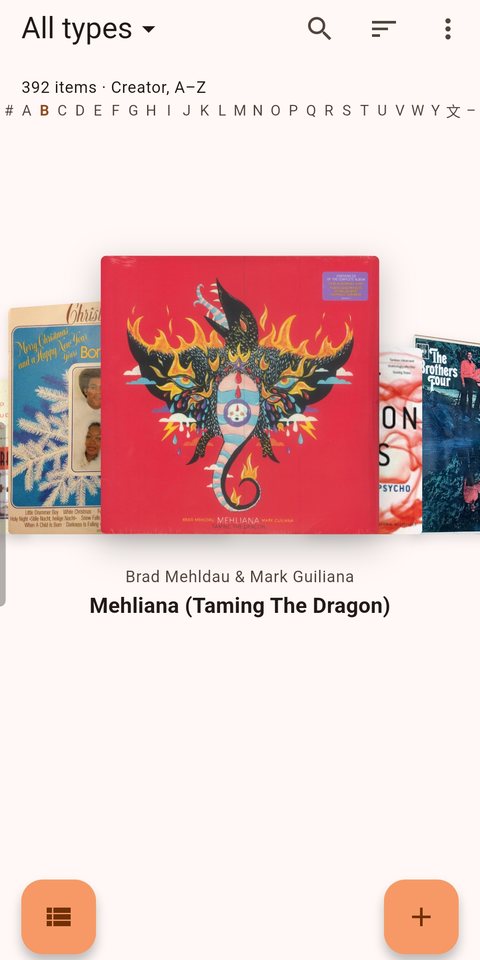
The carousel
The home screen. Swipe through your covers; tap one to open it.
- All types ▾ — narrow the whole app to vinyl, books, DVDs and so on. It always shows what it is filtering to, so you can never be looking at a filtered collection without knowing.
- The count line — how many items you are looking at, and how they are sorted.
- The alphabet rail — jump straight to a letter. Letters you own nothing under are dimmed.
- The magnifier, the sort icon and ⋮ — search, ten sort orders, and the menu holding the wishlist, recommendations, the collection summary and settings.
- Bottom left — swap between the carousel and a plain list.
- Bottom right, the + button — add something.
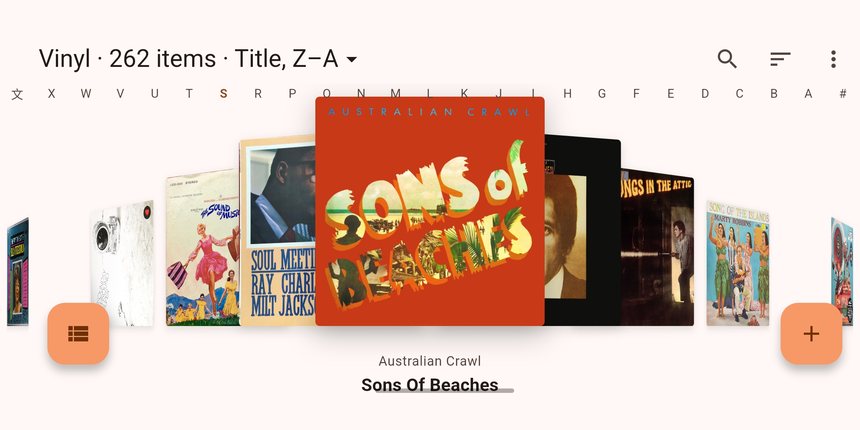
Turn the phone sideways
The carousel uses the extra width for more covers. Everything else stays where it was — the same filter, the same sort, the same alphabet rail, just reversed here because the sort is Z–A.
Adding something
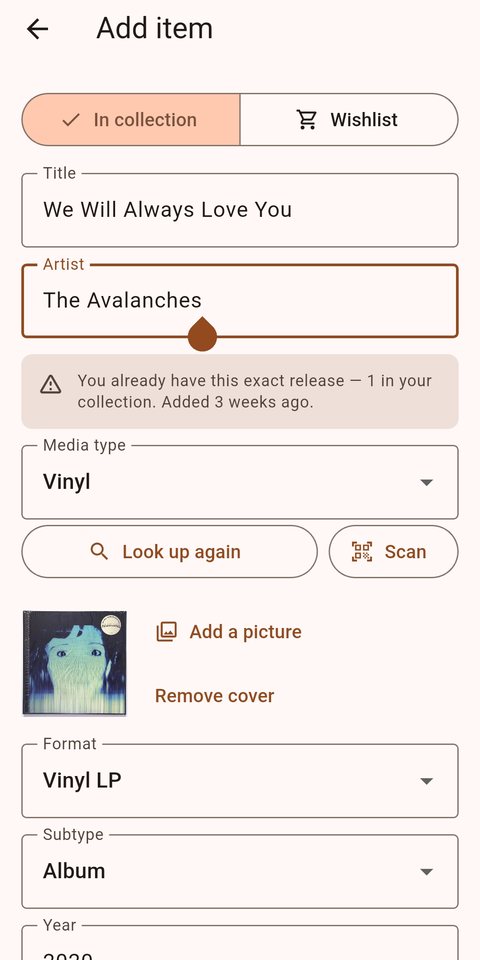
The add screen, and the duplicate check
Type as much or as little as you like — a title and a media type is enough to save. Everything else can wait.
- In collection / Wishlist — the same form either way, so something you are hunting for becomes something you own with one tap later.
- The warning — Meibo tells you when you already have it, before you get home with it. It says how it matched: the exact release, the ISBN, or the title and creator. The wishlist is checked too.
- Look up / Scan — optional. Fill the details in from a service, or scan the barcode on the back. You can ignore both and type everything.
- Add a picture — use the camera or a photo you already have. Covers you add yourself are kept on the device.
An item's page
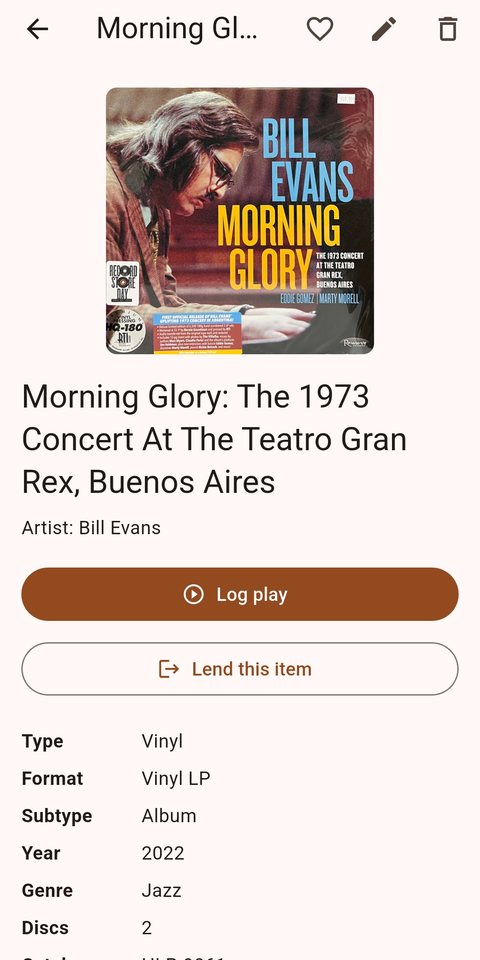
Everything you know about one thing
- The heart, the pencil and the bin — favourite it, edit it, or remove it. Deleted items go to a recycle bin first.
- Log play — records that you listened to it, watched it or read it, and when. That history is what lets Meibo answer "what haven't I played in a year?"
- Lend this item — see below.
- The fields — these change with the media type. A record has a format, a pressing and a catalogue number; a book has an ISBN, a publisher and a page count. You also get condition, what you paid, where it came from, its shelf location, and your own rating and review.
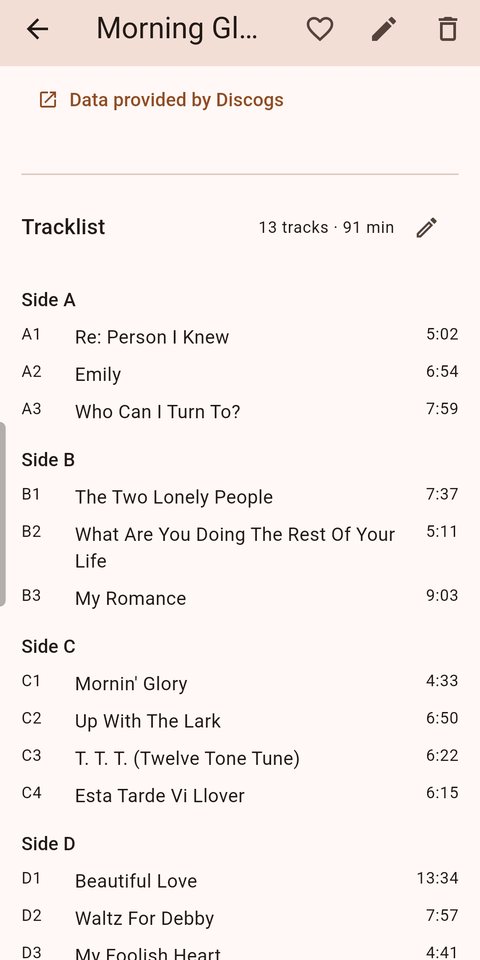
Tracklists
Scroll down an album's page for its tracklist, grouped by side with running times and a total.
- The pencil beside Tracklist — type or correct it yourself. Drag to reorder, and the times add themselves up.
- Data provided by Discogs — shown when the details came from a look-up, linking back to the release it came from.
Lending and reading
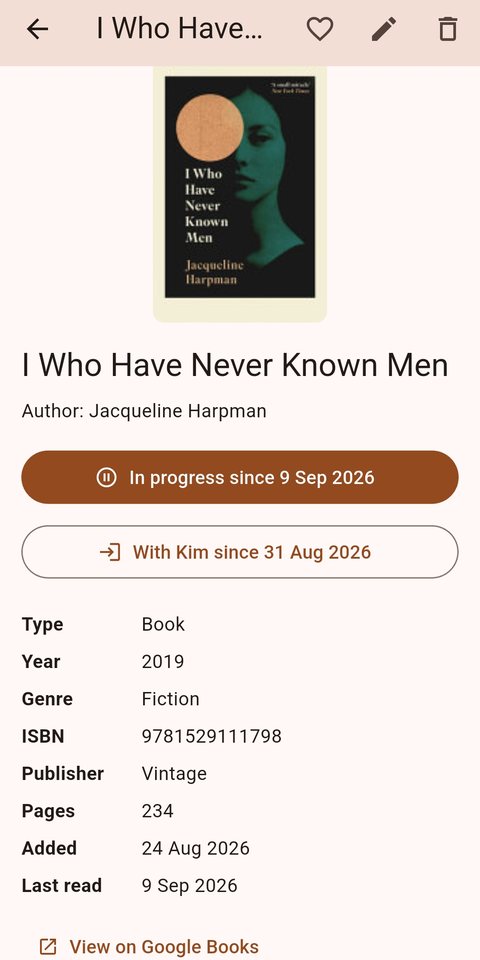
Where it is, and who has it
- In progress since… — you started it and haven't finished. Tap to finish it, or to abandon it.
- With Kim since… — it is out on loan. Tap to mark it returned. Anything currently lent out shows a badge on its cover, so you can see what is missing at a glance.
- View on Google Books — where the details came from.
The wishlist
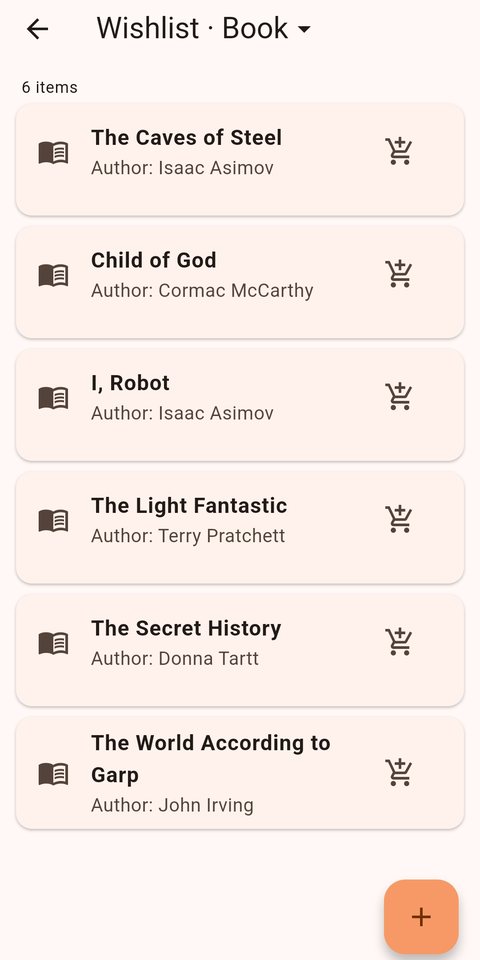
What you are still hunting for
The same app, the same filters, the same duplicate check — so adding something to the wishlist warns you if you already own it, and the shop test works against both lists at once.
- The trolley icon — move it into your collection the day you find it. Everything you already typed comes with it.
Deciding what to put on
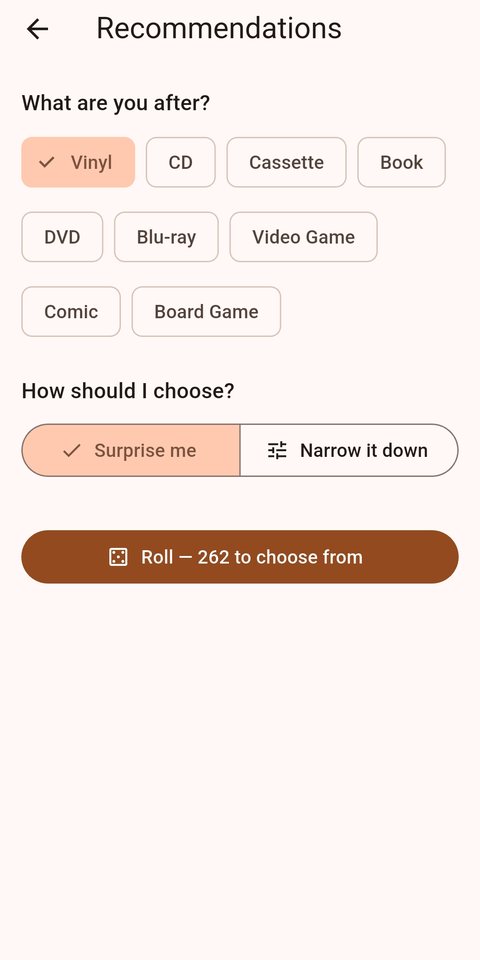
Recommendations
For when you own more than you can choose between.
- Pick a type, then Surprise me and roll.
- Narrow it down — by genre, by decade, by how long it has been since you last put it on, or favourites only.
- The Roll button tells you how many it is choosing from, so you can see your filters biting before you commit to one.
Anything else
Backups and moving to a new phone, what look-ups can and cannot find, and what to do when one returns the wrong thing — Support has those, and the email address if it does not.
Something here out of date, or a screen you wish was explained? — support@meibomedia.com.